 Cabos Ethernet Cat5e
 Cabos Ethernet Cat6
 Cabos Ethernet Cat6a
 Cabos Cat8
 Cabos Ethernet a granel
 Conectores e tomadas
 Gestão de Cabos
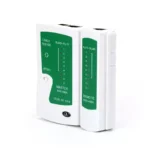 Ferramentas e Testadores de Rede
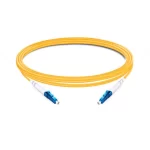 OS2 Monomodo Simplex
 OS2 Monomodo Duplex
 Fibra OM3 Multimodo
 Multimodo OM4
 Multimodo OM2
 Multimodo OM5
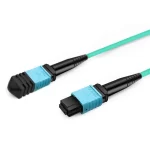 Cabos MTP/MPO
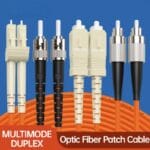 Cabos de Conexão Personalizados
 Componentes de fibra óptica
 Produtos de Limpeza e Utensílios
 Cabos DisplayPort
 Cabos Mini DisplayPort
 Cabos HDMI
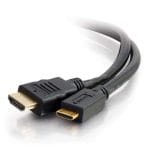 Cabos HDMI Mini/Micro
 Cabos DVI
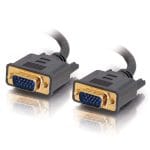 Cabos VGA
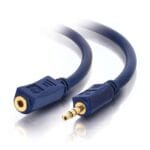 Cabos áudio
 Cabos Thunderbolt
 Cabos USB-C
 Cabos USB 3.0
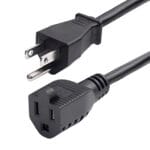 Cabos de alimentação
 Cabos SATA
 Cabos de série
Nenhum produto no carrinho.
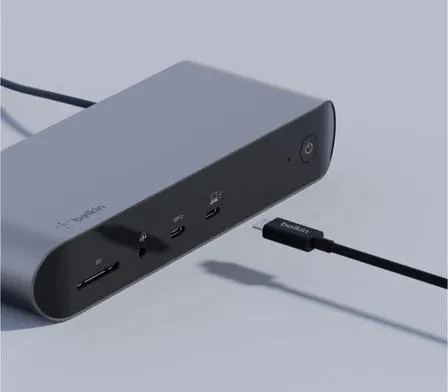
Explicação dos cabos Thunderbolt: Thunderbolt 3, 4 e 5 – Guia de compra
Thunderbolt cables can connect laptops to docks, external SSDs and displays, but their identical-looking USB-C connectors do not guarantee identical performance. Before buying, match the cable to the Thunderbolt generation of your devices, the data rate you actually need, your monitor configuration, charging requirements and cable length. A Thunderbolt 5 cable can be a useful choice for newer equipment, but it will not upgrade an older computer or dock to Thunderbolt 5 speeds.
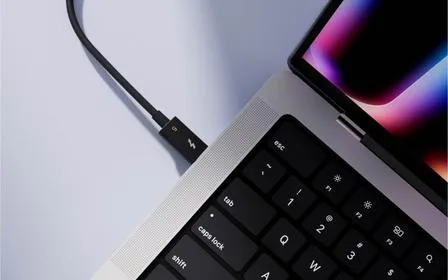
Thunderbolt 3 vs 4 vs 5: Which Cable Do You Need?
Thunderbolt 3 and Thunderbolt 4 are both associated with 40 Gbps link bandwidth. Thunderbolt 4 introduced stronger minimum requirements for certified systems and accessories, including display and PCIe capabilities. Thunderbolt 5 increases the link to 80 Gbps in each direction and can allocate up to 120 Gbps in one direction, with 40 Gbps in the other, when Bandwidth Boost is used for demanding display traffic.
| Generation | Link bandwidth | Practical buying consideration |
|---|---|---|
| Thunderbolt 3 | Up to 40 Gbps | Check the exact cable and both devices; capabilities vary by implementation. |
| Thunderbolt 4 | 40 Gbps | A reliable match for Thunderbolt 4 docks, storage and display setups. |
| Thunderbolt 5 | 80 Gbps bidirectional; up to 120 Gbps one-way with Bandwidth Boost | Best suited to compatible newer hosts, high-bandwidth displays and demanding peripherals. |
These are interface capabilities, not promises of a particular SSD copy speed. Storage performance is also limited by the drive, enclosure, host PCIe implementation, overhead and workload. The 120 Gbps figure is especially important to interpret correctly: it is a directional bandwidth allocation, not a guaranteed 120 Gbps file-transfer result.
Five Specifications to Check Before Buying Thunderbolt Cables
1. Match the host, dock and cable generation
Start with the actual port specifications on your laptop, dock, monitor or storage enclosure. A USB-C-shaped socket may support Thunderbolt, USB4, DisplayPort Alt Mode or only more limited USB functions. A higher-generation cable is useful only within the capabilities supported by both connected devices. Backward compatibility is valuable, but it does not remove those device-side limits.
For a closer explanation of the connector-versus-protocol difference, see our Thunderbolt versus regular USB-C cable comparison.
2. Understand 40, 80 and 120 Gbps correctly
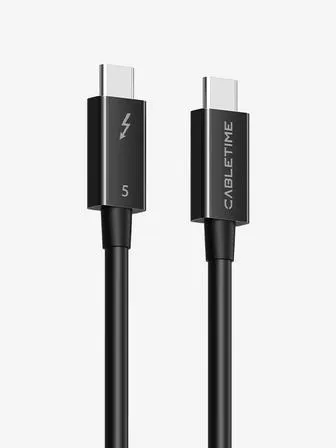
If both ends use Thunderbolt 4, a compatible 40 Gbps cable generally meets that connection’s link-speed requirement. Thunderbolt 5 can provide 80 Gbps bidirectional bandwidth between compatible Thunderbolt 5 components. Its 120 Gbps Bandwidth Boost reallocates bandwidth primarily for display-intensive workloads; it is not the default two-way mode. Check the advertised data rate for the exact cable length rather than assuming a label or short length guarantees every possible operating mode.
3. Check video output separately from charging power
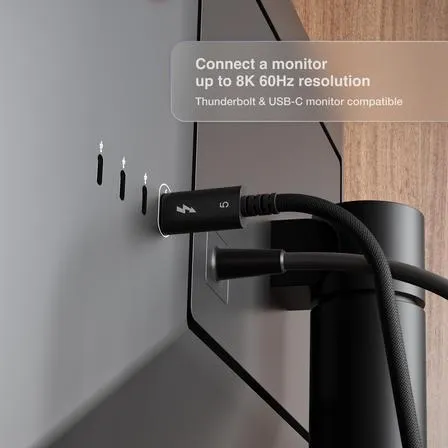
Thunderbolt 5 technology can support demanding display configurations, including up to dual 8K displays on suitably equipped systems. However, whether a particular 8K monitor works at 60 Hz depends on the computer, graphics hardware, dock or adapter, display, supported video modes and any required compression. A cable alone cannot create display features missing from the host or dock.
Likewise, “up to 240W” describes a possible USB Power Delivery Extended Power Range cable capability—not a fixed charging output. Reaching a given wattage requires a compatible power source, device, cable and negotiated USB PD mode. A 240W-rated cable can still be used in a lower-power setup; it does not force the laptop to draw 240W.
4. Choose a tested length—not a universal one-meter rule
Select enough length to route the cable without tension, sharp bends or excessive slack. Longer high-speed cables may require a different construction, including active electronics, but length alone does not prove a lower supported speed. Certified Thunderbolt 5 cable solutions can support the latest link capabilities at lengths beyond 1 m. Read the specification for the exact model and length you plan to order; do not assume that every cable longer than 1 m automatically drops to a slower mode.
5. Check certification claims and product evidence
Look for the relevant Thunderbolt identification and a clear model-specific specification. A seller’s claim of “certified,” an attractive logo image or a generic USB-C label is not by itself independent proof for the exact cable variant. If certification is a purchasing requirement, ask for verifiable documentation or a certification record. Also check the power rating, bandwidth, length and supported device modes as separate items.
Which Thunderbolt Cable Fits Your Setup?
- Existing Thunderbolt 3 or 4 laptop and dock: choose a cable explicitly rated for the required 40 Gbps connection and a suitable length. Buying a Thunderbolt 5 cable will not make the older ports run at 80 Gbps.
- Thunderbolt 5 laptop with fast external storage: consider an appropriately specified Thunderbolt 5 cable and matching enclosure. Confirm the storage hardware and host support the desired data throughput.
- High-resolution or multiple monitors: verify the host, dock and display specifications first, including resolution, refresh rate and DisplayPort capabilities. Bandwidth requirements can be higher than for ordinary office use.
- One-cable dock with laptop charging: confirm USB PD capabilities at every point, including the dock power supply and laptop charging input. A cable marked 240W does not guarantee the dock provides 240W.
For product options, browse CableFam Thunderbolt cables and confirm the published specifications for the selected variant before purchase.
Thunderbolt Cable Buying Checklist
- Identify the Thunderbolt or USB4 capabilities of the computer and connected device.
- Choose the required data rate for the actual workload—not just the largest advertised number.
- Confirm the supported monitor resolution, refresh rate and dock configuration.
- Check the complete USB PD power path and the cable’s stated power rating.
- Verify the exact cable length, construction and any claimed certification.
- Prefer a clear, model-specific specification over an unsupported “works with everything” claim.
Frequently Asked Questions
Can a Thunderbolt 5 cable be used with Thunderbolt 4 or 3 devices?
A cable designed for Thunderbolt 5 is generally intended to support older Thunderbolt connections where the connected hardware and cable implementation allow it. The negotiated connection is limited by the devices and applicable compatibility requirements; using the newer cable does not upgrade older ports.
Do I need an active Thunderbolt cable for 240W charging?
Not simply because the charging rating is 240W. USB PD EPR capability and high-speed signal conditioning are different requirements. Choose a cable with the necessary power rating and data specification; active electronics may be relevant for maintaining high-speed performance at certain lengths.
Does every Thunderbolt 5 cable deliver 8K video and 120 Gbps transfers?
No. Display output and data transfer depend on the complete system. The 120 Gbps mode is an asymmetric Bandwidth Boost capability, primarily useful for high display traffic, and should not be presented as a guaranteed file-copy speed. Check the exact cable, host, dock and display requirements before purchase.
Produtos relacionados
-

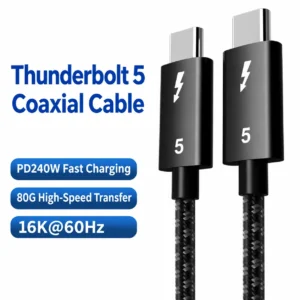
Thunderbolt 5 Cable – USB-C to USB-C, Black Braided
Price range: €17.21 through €26.03 This product has multiple variants. The options may be chosen on the product page